You’ve explained where to park, which facial to choose and what happens on a first visit. Then the next person messages with the same questions. It’s useful information, but a Story shared last week is easy to miss.
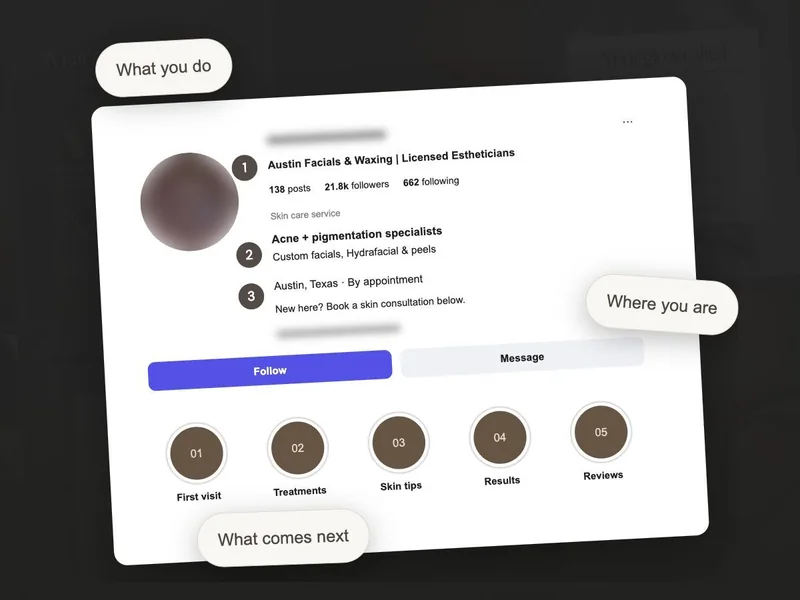
Instagram Highlights give those answers a place on your profile. We’ll plan a small “First visit” collection together, then walk through adding it so you have something helpful to point new clients towards.
What are Instagram Highlights?
Highlights are groups of saved Instagram Stories. A Story normally stays available for 24 hours; a Highlight lets you keep selected Stories on your profile so someone can come back to the information later.
Think of each Highlight as a folder for one subject. Give it a label a new visitor would recognise. “First visit,” for example, tells them more about what’s inside than “The experience.”

Canva explains how Highlights keep Stories available on your profile. Highlights are different from pinned feed posts and Reels.
Which Highlights should an esthetician have?
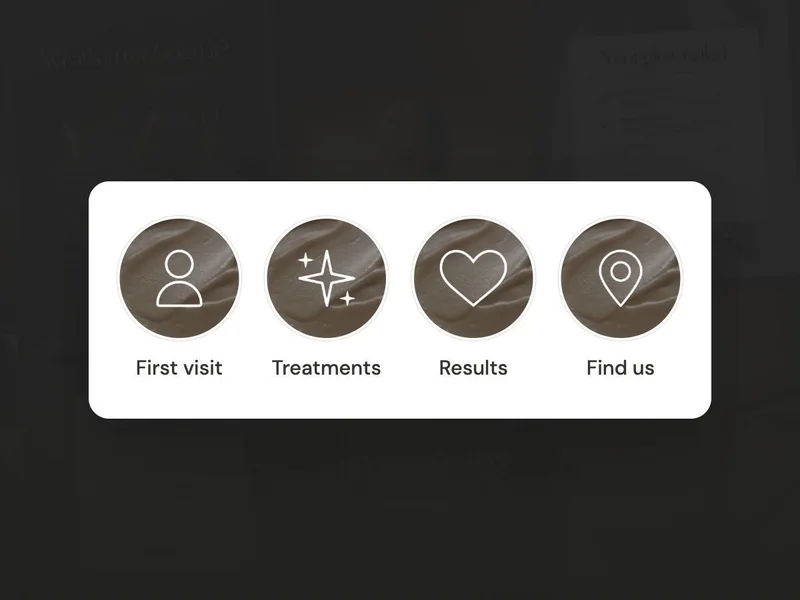
Start with the questions that keep coming up before appointments. You can choose from the categories below, but there’s no need to fill all of them today. One useful collection is enough to begin with.
First visit
Which appointment should I choose? What happens when I arrive? What should I bring?
Use a welcome video, a room photo and a simple explanation.Treatments
What do you offer? What is included? Where can I find the current prices?
Explain the appointment in client-friendly words.Results
What does your work look like? Which treatment was used, and how much time passed?
Use your own client photos with permission. Keep lighting and angles consistent.Find us
Which city are you in? What does the entrance look like? Is there parking?
Add practical details that make arriving easier.What should go in a “First visit” Highlight?
Let’s build a “First visit” Highlight for Marlow Skin Studio, our example business. These three Stories each answer one question. As you read, think about the photos and appointment details you’d use for your version.
 MARLOW / FIRST VISIT
Start with a skin consultation.
1. Show where to start
Give the first appointment its actual name, so someone looking at your menu later will recognise it.
We talk about your routine and what you’d like help with, then discuss your options.
2. Explain the visit
Use a short clip of your consultation space and explain what happens there. A new client can start to picture the visit.
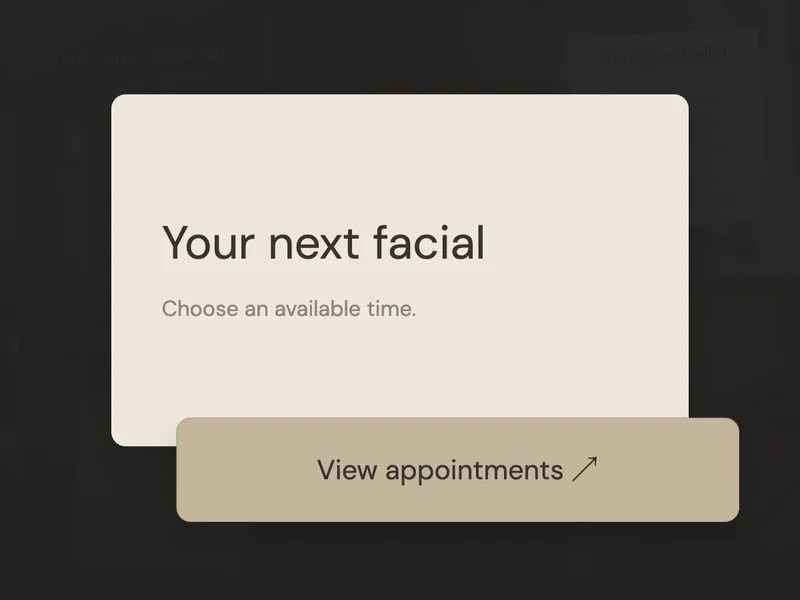
Tap our bio link. Choose “Skin consultation” to see prices and available times.
3. Give the next step
Match the service name to your booking menu. That saves someone having to guess which option you meant.
Keep the introduction brief. Someone opening “First visit” is looking for practical help. Give each screen one point and enough space for text that’s comfortable to read on a phone.
How do I add Stories to an Instagram Highlight?
When your sequence is ready, open the Instagram mobile app. You can work with Stories you’ve already shared or post the new sequence first. Your controls may sit in slightly different places depending on the app version.
Choose the Stories
Open your profile’s Highlights area and look for New or Story highlight. Select the Stories you want to keep, then continue. For older Stories, check your Stories archive.
Add a name and cover
Name the collection “First visit” and choose a cover you can recognise, then finish saving it. A Story image is fine for now; you can add a designed cover whenever you’re ready.
Open it as a visitor would
Open the collection and watch it all the way through. Check the text, order and booking instructions, then ask yourself whether it answers the question on its label.
Use Instagram’s instructions for adding Highlights if your controls look different. If an old Story isn’t in your archive, you may need to share a new version.
Later, you can open the Highlight’s editing options to add a useful Story or remove an outdated one. If you’d like matching covers, our Canva Highlight cover guide takes you through making a set.
How do I keep my Highlights useful?
- The title tells someone what’s inside.
- Every Story answers a question about your own business.
- Prices, opening hours and booking instructions are current.
- Any client photos or reviews have permission to be shared.
- The next step matches your live booking page.
Once your first Highlight is saved, you have an answer you can share when that question comes up again. Add another collection when you have something useful to put in it, and make a quick update whenever your services or booking details change.