It’s easy to spend longer choosing Highlight covers than you expected. A design can look lovely in Canva, then become a tiny, hard-to-read circle on your Instagram profile.
We’ll make a simple set that still makes sense at that size. You’ll create one cover, use it as the starting point for the others and check them on your profile before calling them finished.
What makes a good Instagram Highlight cover?
Start with one simple icon or short word, a clear background and a consistent style. The Highlight’s name does some of the work too. Someone should understand “Treatments” even if the symbol is unfamiliar.
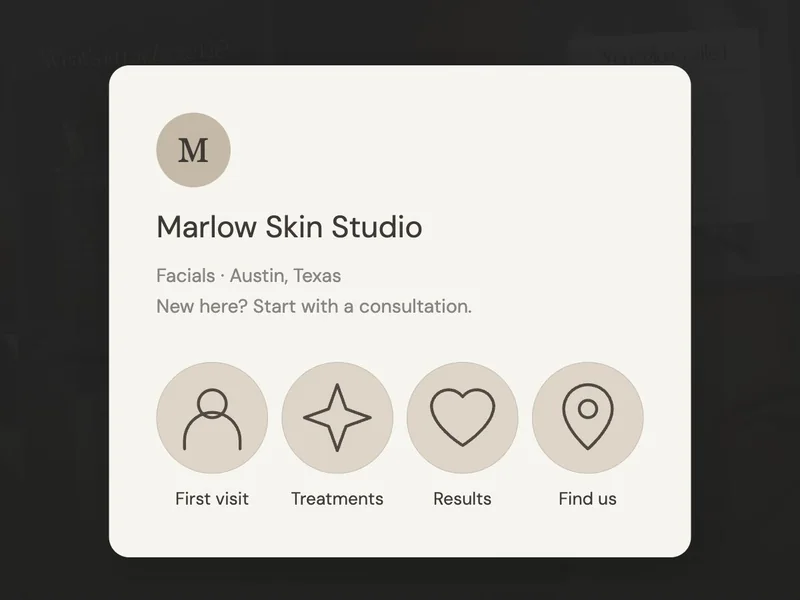
For Marlow, our example studio, we’re making four covers: First visit, Treatments, Results and Find us. The white icons sit over the same warm skincare texture. We’ll keep that background and line style consistent, then change the symbol for each subject.
 First visit
 Treatments
 Results
 Find us
A full logo, your tagline and a treatment list squeezed into one small cover.
One clear symbol, with “Treatments” written as the Highlight name.
Canva offers editable Highlight cover templates. Choose free templates and elements if you’re using a free account. A matching set gives the collections a consistent look and makes them easy to recognise on your profile.
How do I make my first Highlight cover in Canva?
1 Make a blank square
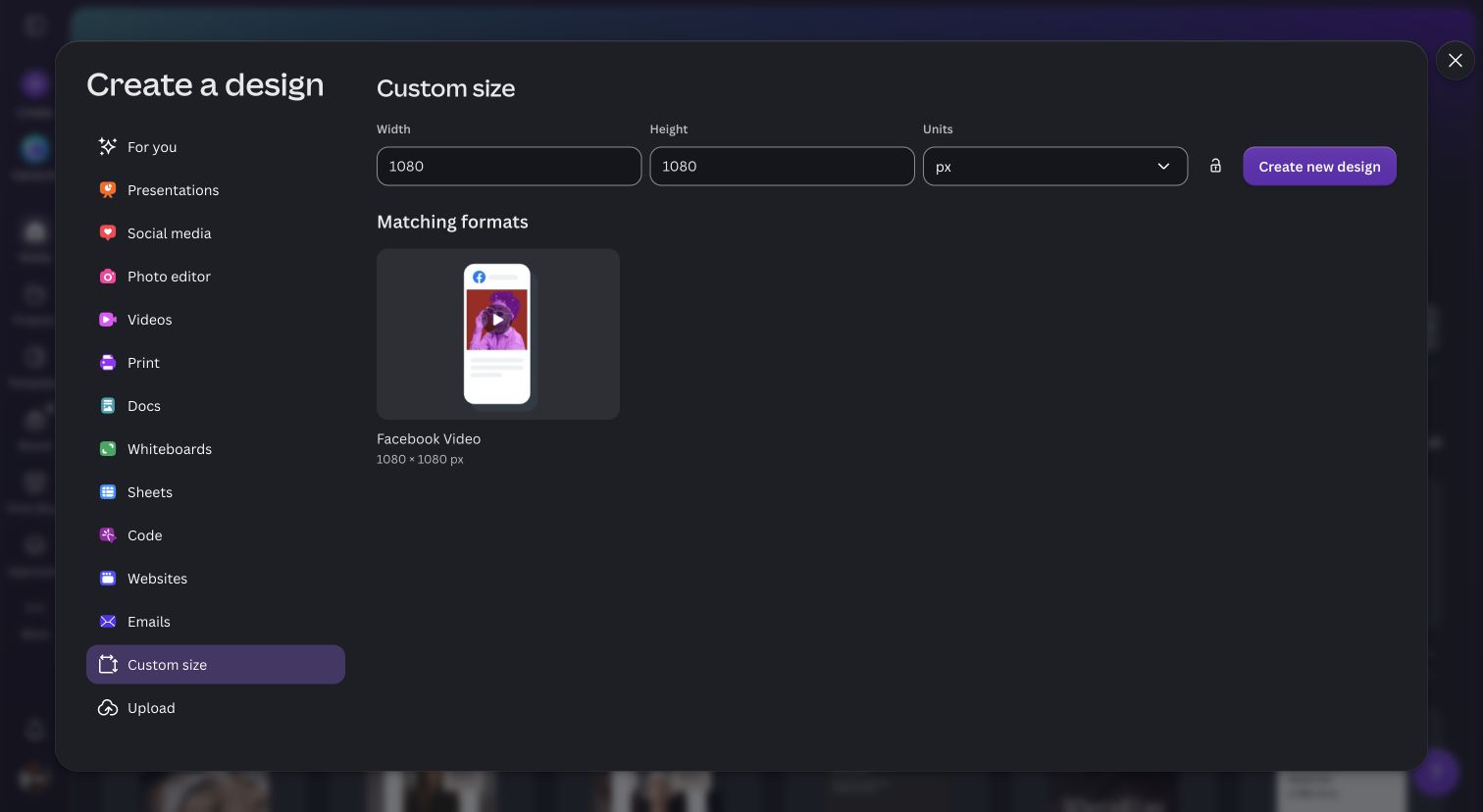
In Canva, choose Create a design → Custom size. Enter 1080 for both width and height, choose px, then click Create new design.
2 Choose a simple background
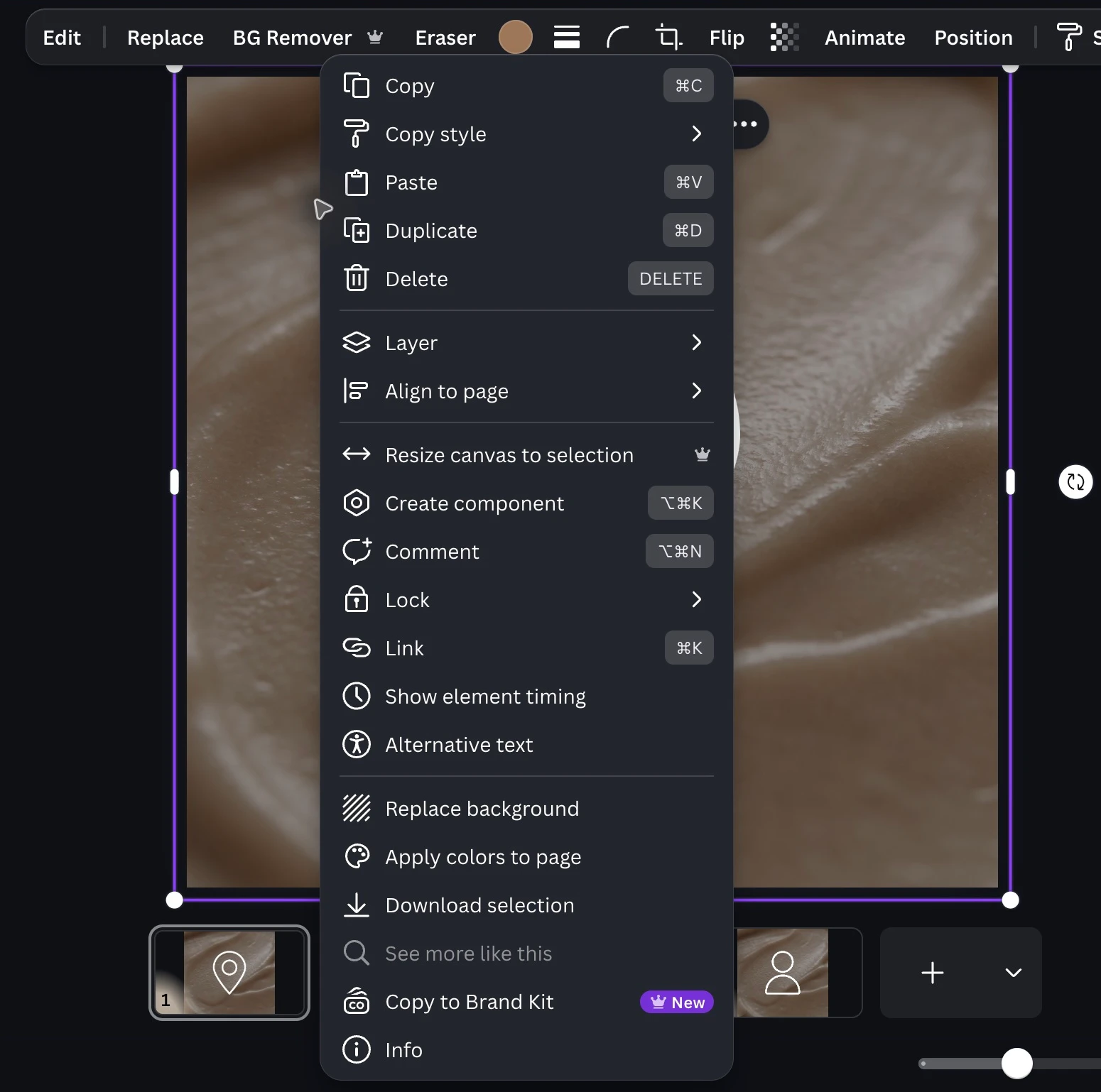
Our example uses a close-up skincare texture. Add your own photo from Uploads, then right-click it and choose Replace background. Choose an image with a quiet area behind the icon so it’s easy to see. A solid colour from your usual palette works too; click the page and use the colour circle in the toolbar.
3 Add one clear icon
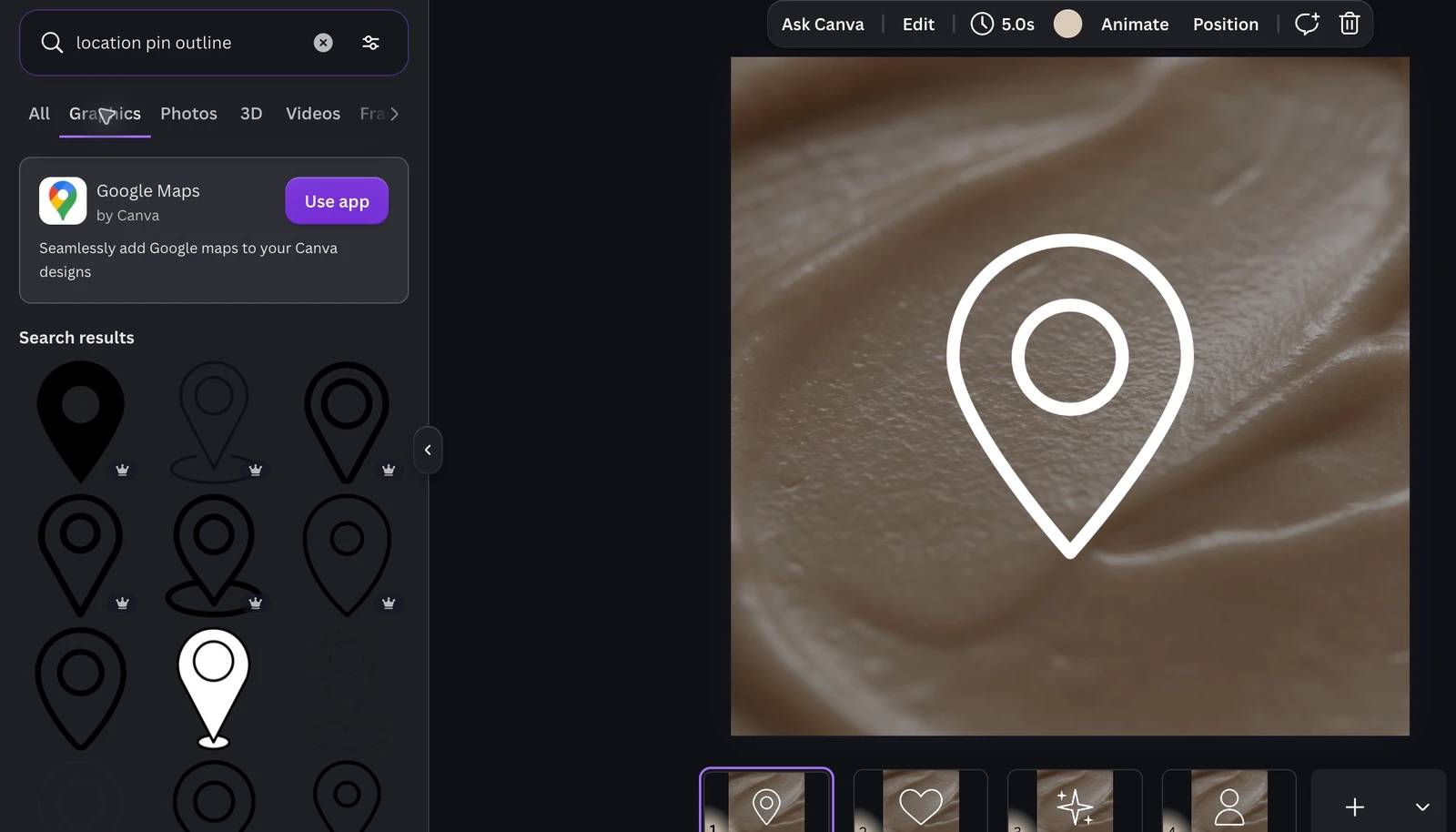
Open Elements, search for “location pin outline” and choose Graphics. Pick a simple outline for your “Find us” cover. Select the icon and use its colour control in the top toolbar to make it white, like our example. If you’re using Canva Free, use the search filters to choose free graphics.
4 Put it in the middle
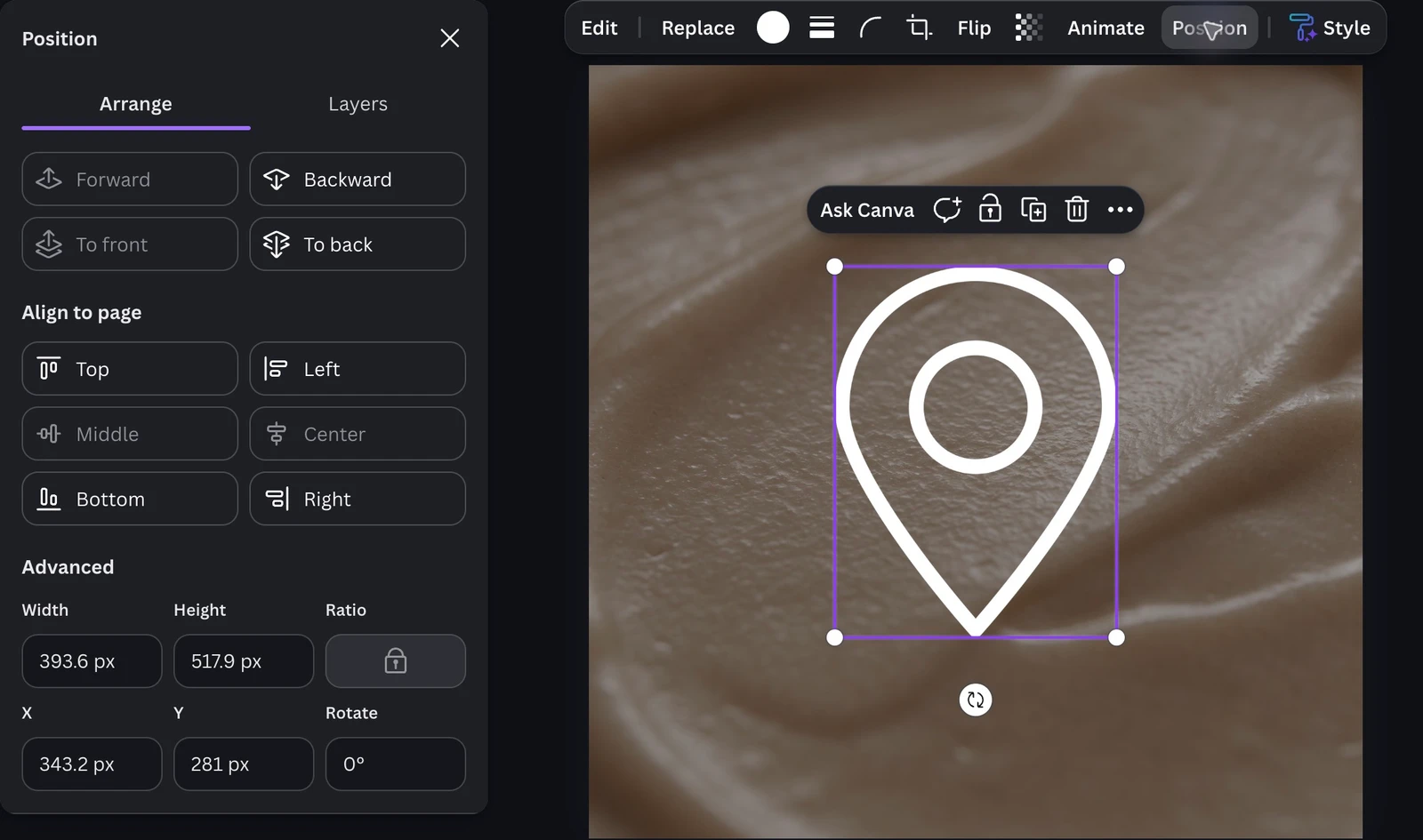
Select the icon, open Position, then choose Center and Middle. Leave plenty of space around it so Instagram’s round crop won’t cut it off.
Keep the symbol inside the circle, away from the edges.
Before moving on, zoom out and check that you can still recognise the icon. Keep it inside the round area so there’s room for Instagram’s crop.
How do I make the rest of the covers match?
5 Copy the page, then change the icon
Click the three dots on the page thumbnail at the bottom of Canva. Choose Duplicate page. On the new page, select the pin and delete it. Add a new icon from Elements, then centre it using Position.
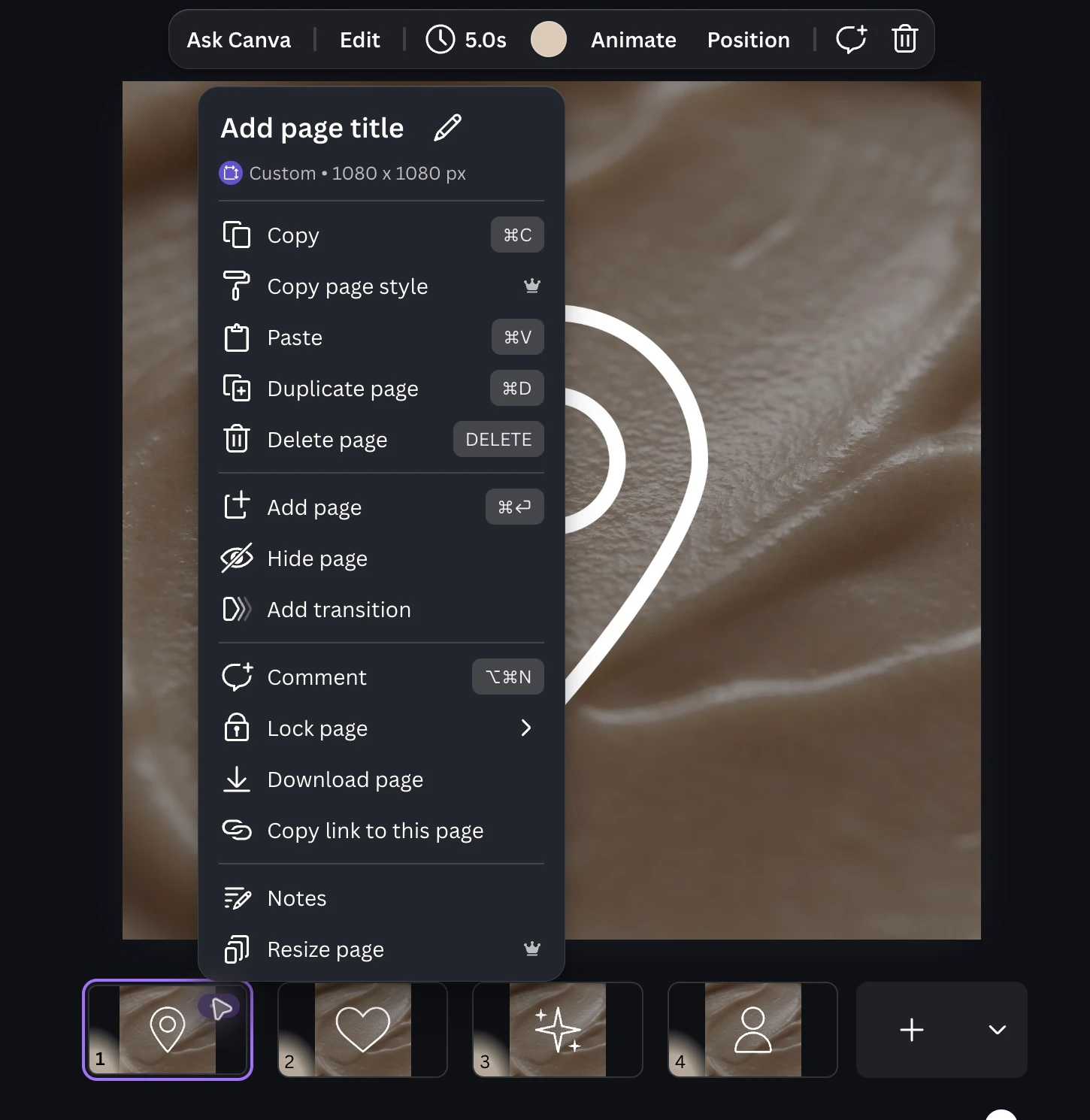
For the next cover, you could try a person for “First visit” or a sparkle for “Treatments.” Use a heart for “Results” and a pin for “Find us.” Keep the white outlines and the same background image across all four covers.
Keep these the same
Background image or colour, icon colour, line thickness and the space around the symbol.
Change this
The symbol for each topic. Try a person for First visit and a pin for Find us.
When you have a few covers, look at them beside each other. If one feels much heavier, larger or busier, adjust that one. You can keep using the first cover as your reference instead of making each from scratch.
Canva’s page controls let you duplicate a page. The position of the control depends on whether you’re using scrolling, thumbnail or grid view.
How do I download and add my Highlight covers?
6 Download your covers
Open Share → Download. Choose PNG, keep the size at 1080 × 1080 px and select your finished pages. Click Download.
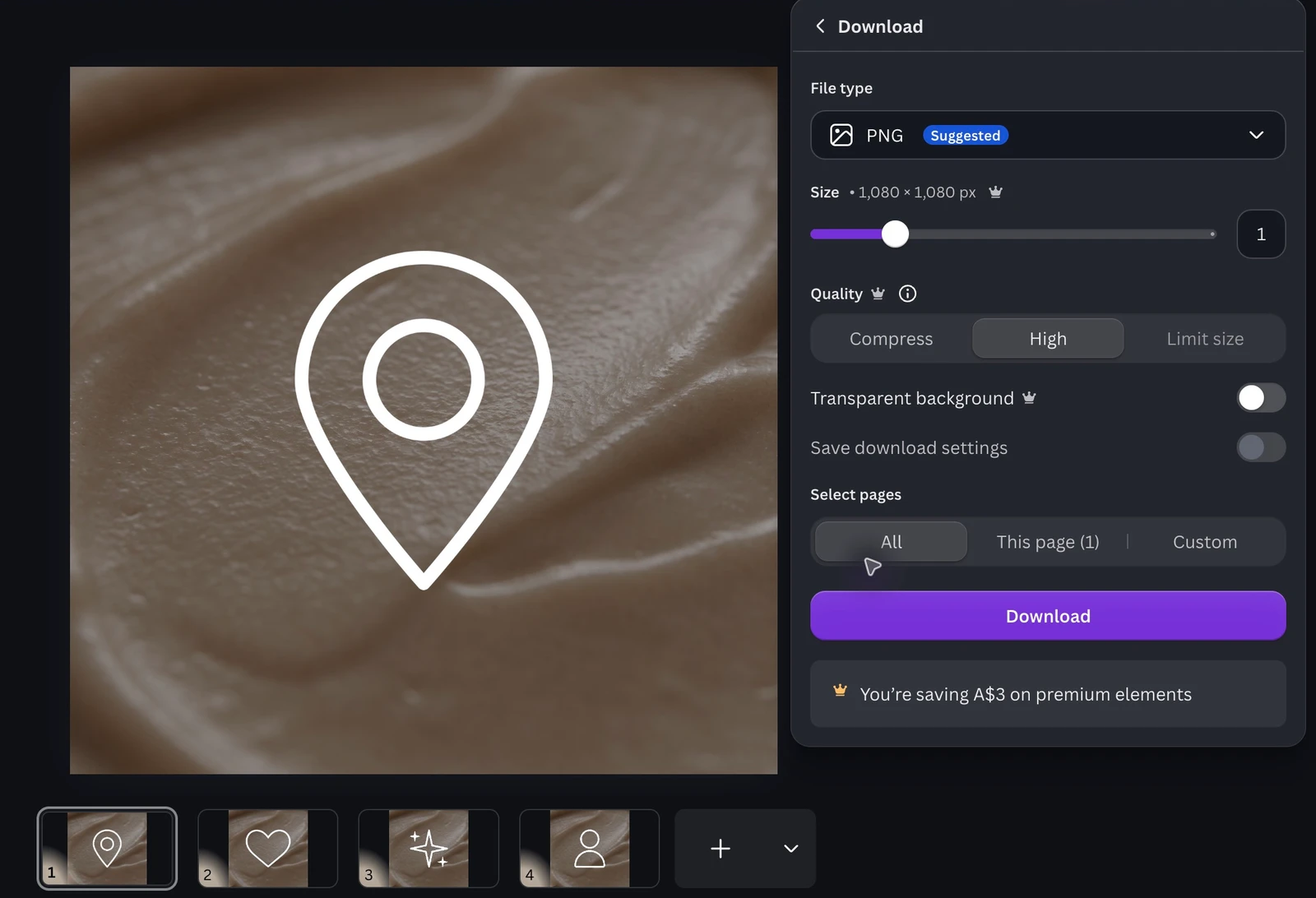
If Canva downloads a ZIP file, extract it first so you can get to the individual images. Then transfer those cover images to your phone.
Open your Highlight’s editing options, then Edit cover. Choose your image where that option is available. Have a look at the circular crop before you save, especially around the edges of the symbol.
See Canva’s download instructions and Instagram’s Highlight guidance. Controls can vary between app versions.
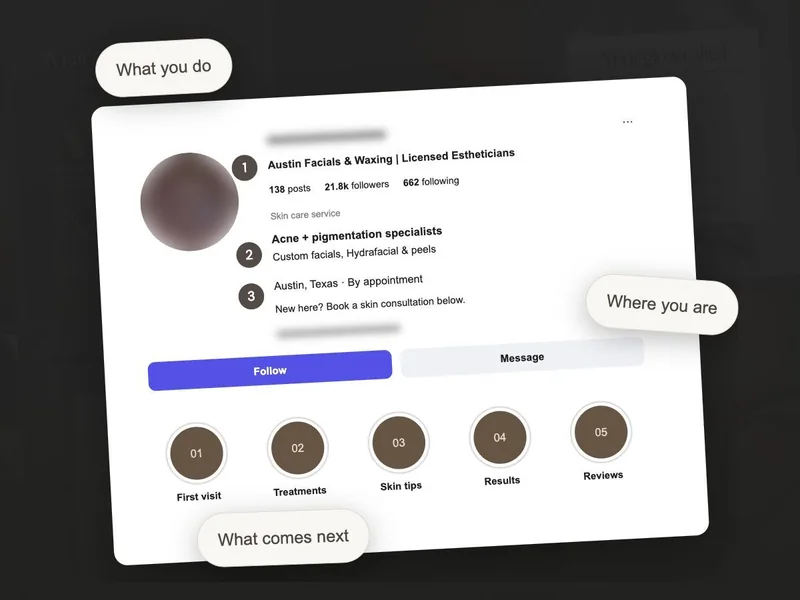
Your new cover changes how the collection looks; you’ll still need Stories inside it. If you haven’t made the collection yet, our Instagram Highlights setup guide will help you put the answers together.
Check your covers on your actual profile
- The icon is clear at a small size.
- Nothing important touches the edge or gets cropped.
- The covers look like a set.
- Each name explains what someone will find inside.
- The Stories are useful and up to date.
Once the set is clear on your profile, you can leave the design alone. Open one of the Highlights and check the answer inside. That’s where a new client will find the details they came looking for.